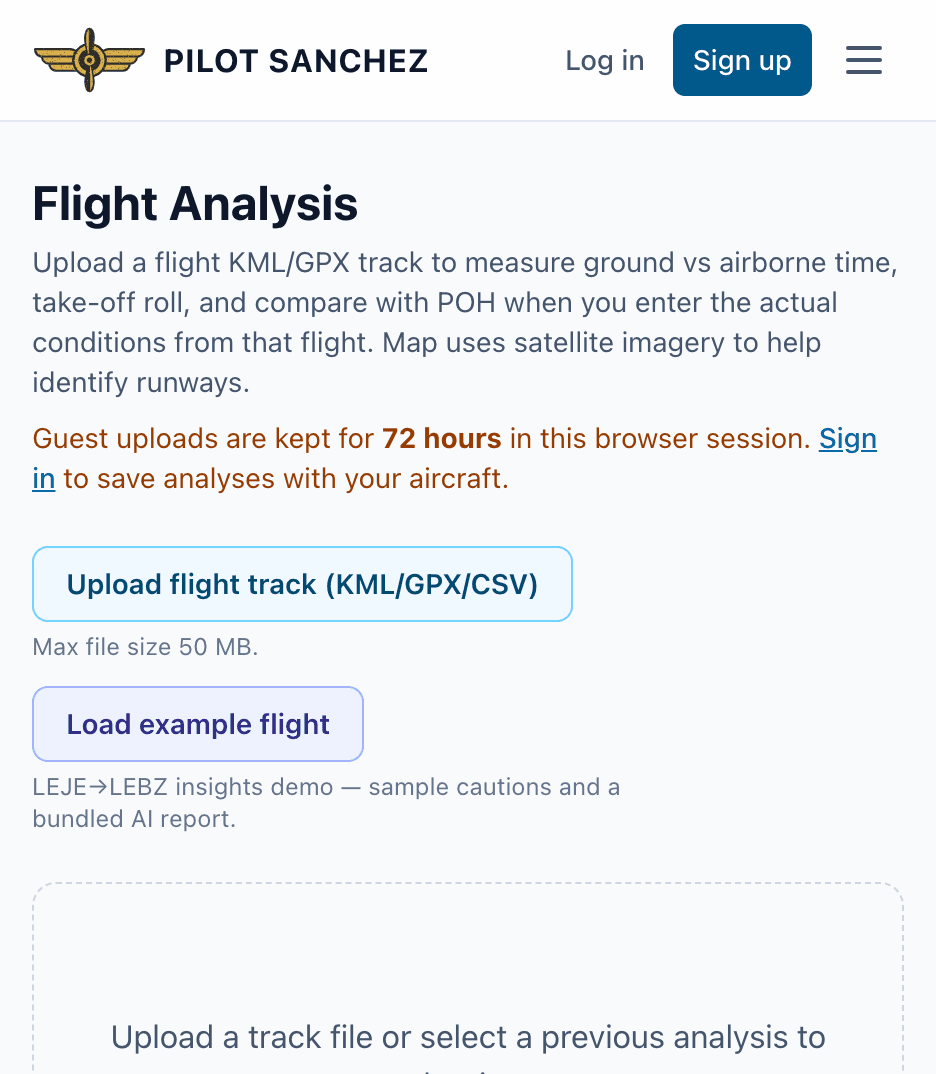
Flight Analysis Tool Guide
The Flight Analysis tool on the Pilot Sanchez portal is designed to help pilots analyze their flight data by uploading GPX files, generating profile charts, and conducting comprehensive debriefs. This guide will walk you through the practical workflow, highlight common mistakes, and provide links to aircraft-specific guides to enhance your experience.
Practical Workflow
-
Uploading GPX Files:
- Navigate to the Flight Analysis section of the Pilot Sanchez portal.
- Locate the "Upload GPX" button. This is where you will upload your flight data.
- Click on the button and select the GPX file from your device. Make sure the file is properly formatted and contains relevant flight data (waypoints, altitude, speed, etc.).
- After selecting the file, click “Upload.” The system will process the GPX file and prepare it for analysis.
-
Generating Profile Charts:
- Once the GPX file is uploaded, the tool will automatically generate profile charts that visualize your flight data.
- Review the generated charts, which typically include altitude profiles, speed graphs, and other relevant metrics.
- Utilize the zoom and pan features to focus on specific segments of your flight. This can help identify performance trends or areas needing improvement.
-
Conducting a Debrief:
- After reviewing the profile charts, you can initiate a debriefing session. This is where you can analyze your flight in detail.
- Use the debrief tool to annotate specific points on the charts. For instance, mark where you experienced turbulence or where your altitude deviated from your flight plan.
- Discuss your observations and insights with fellow pilots or instructors to gain different perspectives on your performance.
- Save your debrief notes for future reference or to share with your flight school or training partners.
-
Exporting Data:
- After completing your analysis, you may want to export the data for personal records or further study.
- Look for the "Export" option in the tool, and choose your preferred format (CSV, PDF, etc.) to save the data.
Common Mistakes
-
Incorrect GPX File Format:
- Ensure that your GPX file is correctly formatted before uploading. Common issues include missing waypoints or incorrect timestamps, which can lead to inaccurate analysis.
-
Neglecting to Review Charts:
- Some pilots skip reviewing the generated charts thoroughly. Take the time to analyze each aspect of your flight, as this can reveal critical insights into your flying habits.
-
Inadequate Debriefing:
- Failing to conduct a thorough debrief can limit your learning. Use this opportunity to reflect on your performance, identify strengths, and highlight areas for improvement.
-
Not Saving Analysis:
- Remember to save your debrief notes and analysis results. This ensures you have a record for future reference and continued improvement.
-
Ignoring Feedback:
- If you are sharing your analysis with peers or instructors, be open to feedback. Constructive criticism can significantly enhance your flying skills.
Aircraft-Specific Guides
To further enhance your understanding and proficiency, refer to the following aircraft-specific guides available on the Pilot Sanchez portal:
- Cessna 172 Flight Analysis Guide
- Piper PA-28 Flight Analysis Guide
- Cirrus SR22 Flight Analysis Guide
These resources contain tailored advice and analysis methods specific to each aircraft type, helping you to optimize your flight performance.
Using Pilot Sanchez
- Upload GPX files easily and analyze your flight data in minutes.
- Generate insightful profile charts to visualize your performance.
- Conduct detailed debriefs with peers and instructors to enhance learning outcomes.
- Export data for personal records and further analysis.
- Access aircraft-specific guides for tailored advice and improved proficiency.
By effectively utilizing the Flight Analysis tool, you can significantly improve your flying skills and confidence in the cockpit. Happy flying!